
With this tutorial I am going to show you one of the ways I use to give a photo a vintage, aged look.
I am starting with this 2MP stock photo of a mannequin.
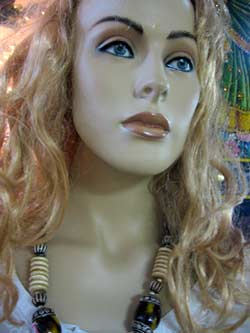
1. First of all we are going to desaturate the photo. Go to Image -> Adjustments -> Desaturate or just press Ctrl+Shift+U.
2. Then we are going to add some noise to our photo. Go to Filter -> Noise -> Add Noise and use these settings (If your photo is very large you may need to add some more noise)

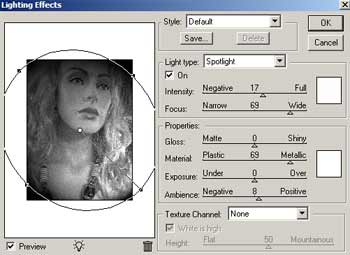
3. Go to Filter -> Render -> Lighting Effects. Here are the settings I used.
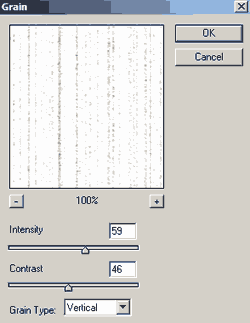
4. Create a new layer (Ctrl+Shift+N), fill it with white, set its Opacity to 30% and go to Filter-> Texture -> Grain and apply these settings.
5. Create another new layer and fill it with a dull brownish color. I used #A7905A. Set its Opacity to 50% and the blending mode to Vivid Light. You should now have something like this.

6. It’s time for the final touches. Get the burn tool and choose a grunge brush to add some stains. You can also add scratches, tears etc it’s up to you.
Here is my final result.

If you liked this tutorial check out my other Adobe Photoshop Tutorials
Comments are closed.